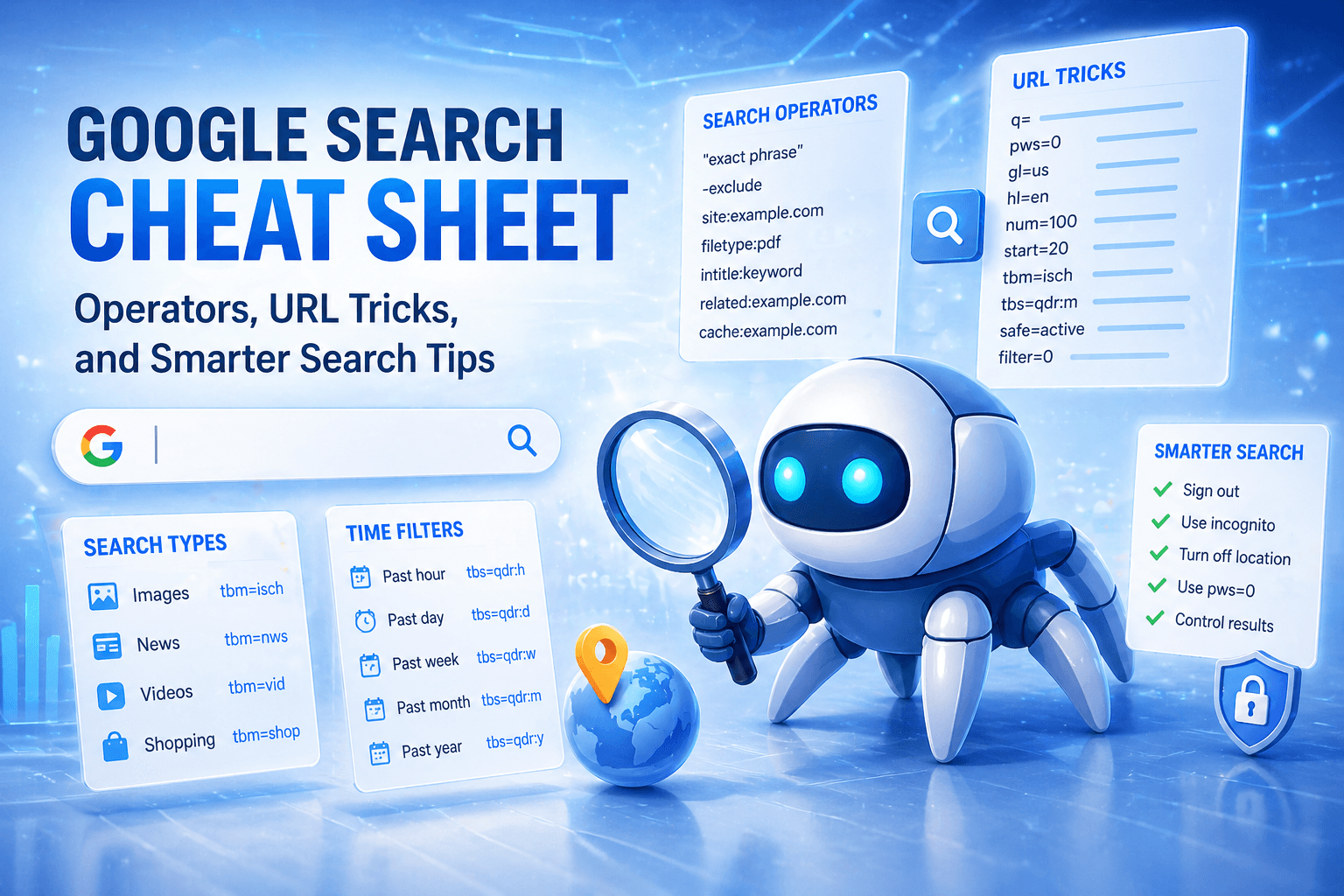
Most people use Google the same way: type a few words, hit Enter, and hope the right page shows up. That works for casual browsing, but if you do research, SEO, competitive analysis, troubleshooting, or local discovery, a few simple tricks can make Google dramatically more useful.
This guide is a practical reference for using Google more intentionally. It covers search operators you can type into the search bar, URL parameters that can change how results behave, and privacy-minded habits that help reduce personalization and location bias.
Why Google feels different from person to person
Google does not show the exact same results to everyone. Search results can shift based on location, language, search history, device, and whether you are signed in. That matters because two people can search the same phrase and see different rankings, different local packs, and different news or shopping modules. If you want cleaner research, better SEO testing, or less personalization, you need to control more of the search environment.
URL tricks that change Google results
A lot of people never touch the search URL, but it can be surprisingly useful. Once you run a search, look at the URL in your browser. You can often edit parts of it to change how Google behaves. Here are some of the most useful URL parameters to know.
q= — the query itself
This is the search term.
Example:
https://www.google.com/search?q=seo+tools&pws=0
This is helpful when you want a less customized SERP, especially for SEO research. It is not a magic “privacy off” switch, but it can reduce the influence of your past activity.
gl= — country targeting
This nudges Google toward results associated with a specific country.
Example:
https://www.google.com/search?q=football+news&gl=us
Try values like:
• gl=us for the United States
• gl=uk for the United Kingdom
• gl=ca for Canada
• gl=au for Australia
This is useful when you want to see results that better reflect a country-specific audience.
hl= — interface language
This changes the Google interface language and can influence how results are presented.
Example:
https://www.google.com/search?q=restaurants+near+me&hl=en
Useful values include:
• hl=en for English
• hl=es for Spanish
• hl=fr for French
Example:
https://www.google.com/search?q=ai+agents&num=100
This can save time when you want a broader view without constant pagination.
start= — jump to another results page
This controls the offset for results.
Examples:
• start=0 = first page
• start=10 = second page
• start=20 = third page
Example URL:
https://www.google.com/search?q=technical+seo&start=20
This is useful when you want to inspect deeper search results quickly.
tbm= — switch search types
This tells Google which result type to show.
Common values:
• tbm=isch for Images
• tbm=nws for News
• tbm=vid for Videos
• tbm=shop for Shopping
Example:
https://www.google.com/search?q=standing+desk&tbm=shop
This is one of the fastest ways to jump straight into a specific vertical.
tbs= — apply filters like time
The tbs parameter can be used for filters, including freshness.
Common examples:
• tbs=qdr:h = past hour
• tbs=qdr:d = past day
• tbs=qdr:w = past week
• tbs=qdr:m = past month
• tbs=qdr:y = past year
Example:
https://www.google.com/search?q=google+algorithm+update&tbs=qdr:m
This is excellent for tracking recent news, product launches, or documentation updates.
safe=active — SafeSearch on
Example:
https://www.google.com/search?q=wildlife+photos&safe=active
This is mostly useful for family-safe or classroom environments.
filter=0 — include similar results
Google sometimes omits results it considers too similar. This parameter can surface more of them.
Example:
https://www.google.com/search?q=best+crm+software&filter=0
This can help when you want a fuller SERP instead of Google collapsing near-duplicates.
Advanced note: uule
If you want to simulate search from a more specific geographic area, Google can use a location-bias parameter called uule . This is more advanced because it requires encoded location data, so most people use tools or browser extensions to generate it rather than writing it by hand.
For local SEO, uule is one of the more powerful ways to influence geographic relevance without physically being in that place.
Privacy-minded ways to search
If your goal is to search with less personal influence, use a few habits together instead of relying on one trick.
• Sign out of your Google account before searching.
• Use Chrome's guest mode or a private or incognito window.
• Add pws=0 to reduce personalization.
• Turn off or deny precise location access when you do not want local bias.
• Use gl= for country testing instead of relying on your current location.
• Clear search context by starting with a fresh session when doing research.
Google also offers a “Results about you” feature that helps people find and request the removal of certain personal information from Search. That is worth using if your address, phone number, or similar personal details appear publicly in search results.
Search bar operators everyone should know
You do not need Google’s Advanced Search page to do advanced searches. Most of the best tricks can be typed directly into the search box.
i.e., "exact phrase"
Use quotation marks to search for an exact phrase.
Example:
"generative engine optimization"
This is useful when you need precise wording, citations, product names, or error messages.
-exclude
Use a minus sign to exclude a word.
Example:
jaguar -car
That tells Google you want results about jaguars, but not the car brand.
site:
Search only within one site or domain.
Examples:
√ site:nytimes.com ai regulation √ site:reddit.com best golf rangefinder √ site:.gov grant application √ site:.edu climate research
This is one of the most valuable search operators in Google. It often works better than a website’s built-in search.
filetype:
Find specific file formats such as PDFs, PowerPoints, or spreadsheets.
Examples:
seo audit template filetype:pdf marketing strategy filetype:ppt budget template filetype:xlsx
This is great for finding downloadable resources, whitepapers, and internal-style documents that are publicly indexed.
OR
Use OR in capital letters when either term is acceptable.
Example:
college OR university scholarships
This broadens the search without needing multiple separate queries.
* wildcard
Use an asterisk as a placeholder for an unknown word.
Example:
"best * for remote work"
More Search Bar Operators
intitle: — Search for words in the page title This forces Google to only show results where your keyword appears in the HTML title tag of the page.
related: — Find similar websites If you find a site you like and want more like it, use this operator.
cache: — View the version Google last saw This shows you the "cached" version of a page, which is useful if the site is currently down or the content has recently changed.
- Example:
cache:example.com/blog-post
The Power of "Stacking": Combining Operators
The true "Pro" level of Google search happens when you combine these tools. You can stack URL parameters and search operators to create a surgical search experience.
For PR/Guest Posting: site:forbes.com intitle:"artificial intelligence" -cloud (Search Forbes for AI articles, specifically those with AI in the title, while excluding anything about the cloud.)
For Competitor Research: site:competitor.com filetype:pdf "2024" (Find all PDF documents—like whitepapers or annual reports—published on a competitor's site in 2024.)
For Content Ideas: site:reddit.com "how do I" * "seo" (Use the wildcard and exact match to find specific questions people are asking on Reddit about SEO.)
Google is more flexible than it looks. Small changes to how you search can make a big difference in what you see.
Using operators, adjusting URL parameters, and limiting personalization gives you more control over results. That matters for research, SEO, and anything where accuracy and perspective are important.
You do not need to use everything in this guide. Even a few of these techniques can help you get better, more consistent results.
For breakdowns of every Google update delivered to your inbox just a few days after they happen, subscribe to the Crawled Field Manual. It's $1 per month. Knowing what each update actually does gives you a clearer picture of why results move. It helps you spot patterns, separate real impact from noise, and make better decisions instead of guessing.